 Download IT
 en
en Русский
Getting started
Open the bot, send a link, and where the rest of the interface lives.
Open @download_it_bot and press Start. The bot replies with your ID and plan, a short description and the menu: Open Mini App opens the Mini App, Settings opens the bot's own settings.
Send your first link
Paste a link to a video, photo post, track or profile from any supported site. The bot fetches its metadata and shows a list of available formats — pick one and the file arrives in the chat.
If a link only has one obvious small format, turning on Auto-download in Settings skips this step and delivers the file right away — see Format picker.
The Mini App
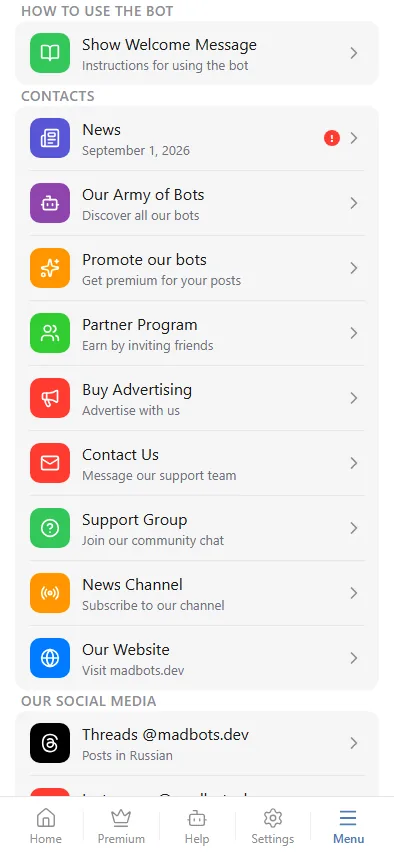
Every button in the bot's menu (/miniapp, or the Menu button under a message) opens the same Mini App, with four tabs at the bottom:
- Home — your files and search, see My files.
- Premium — plans and the comparison table, see Plans.
- Settings — language, timezone, notifications and your subscription, see Settings.
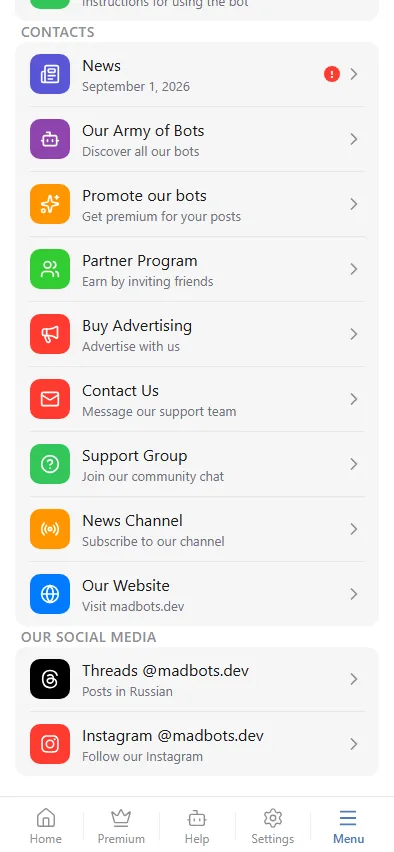
- Menu — the welcome message again, plus links to the news channel, support chat and MadBots' other bots.
Commands
The essentials — the full list is in Commands:
/start— the welcome message and Mini App link/help— a reminder of how the bot works/language— switch the interface language/miniapp— open the Mini App directly